Category Archives: How-to

MySQL Database Alternative

Category : How-to

Get Social!

mysql-logoThere are many alternatives to MySQL that tick some of the boxes you may require. There are plenty of free, open source databases such as PostgreSQL, MogoDB, CouchDB and Apache Derby however many of these databases have a different feature set or are a completely different type of database to the standard MySQL relational data model. Another question is what if I already have MySQL set up in my environment and would like to change? Many people are concerned that the (fairly) recent takeover of Sun Microsystems by Oracle could spell trouble for MySQL.

mariadb-logoMariaDB was created by some of the original developers of MySQL and was created by forking the MySQL code base. It[‘s maintained by the MariaDB Foundation who ensures the free availability of the database software. There are currently 2 main versions of MariaDB available as stable distributions:

  • Version 5.x – which is a drop in replacement for any version 5.x of MSSQL and promises to support all MySQL version 5.x functionality. With this version of MariaDB you can switch your applications to point at it and they will just work. All the connectors and client binaries are compatible and for most scenarios will work right out of the box.
  • Version 10.x – this is the new branch of MariaDB which drifts away from the original MySQL specification and introduces new features. Currently, most of the basics will work, but it no longer guarantees backwards compatibility with MySQL and can no longer be used as a drop in replacement. Eventually this had to happen to enable the MariaDB developers to implement the features they needed to and is the branch of MariaDB that’s being most actively developed.

As you can see, version 5.x is a version you can use straight away if you’re a MySQL 5.x user if you so choose. Version 10.x however, will take a little more time to implement as you’ll need to change the connectors in your applications and ensure that all the features you require from the database are the same. You may also wish to use some of Version 10.x’s features that would otherwise be unavailable.

Take a look at installing MariaDB on Ubuntu or installing a quick and easy database cluster.


Create a RAM Disk in Windows

Category : How-to

Get Social!

ImDisk-Virtual-Disk-DriverI’ve been using RAM disks within Linux for quite some time now and I’ve blogged about it with the ramfs and tmpfs file systems. I’m not going to go over the details of a RAM disk again as the principle is the same on whichever operating system you choose; you set aside a portion of RAM to use as a file system.

Currently I’m using Windows 7 at work instead of my usual Linux based OS’s and so my usual out of the box mounting of a RAM Disk simply won’t work. After a spot of Googling I came across ImDisk which promises to be an Open Source Windows Virtual Disk driver (as well as a few other things). I’m not plugging ImDisk specifically, but they do seem to do what I’m after – create a virtual Disk that I can use as a file system.

Installing ImDisk

Installation was quick and easy – simply download the binary from the website and give the .exe two little clicks.

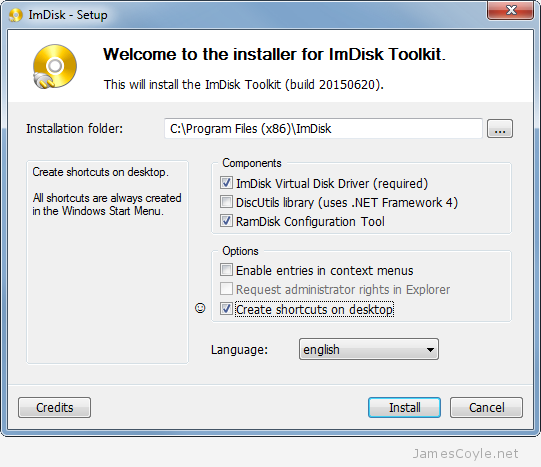
ram-disk-ImDisk-Setup

I disabled a couple of things on the installer because I only want to use it as a RAM Disk driver.

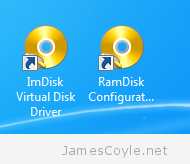
ram-disk-ImDisk-desktop-iconsOnce the installation completes you’ll have two shortcuts on your desktop – that’s assuming you didn’t un-tick them during the installation!

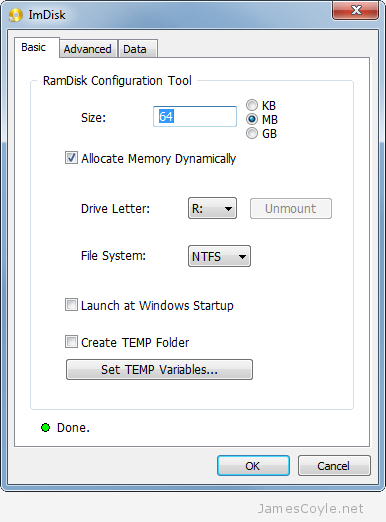
Double click on RamDisk Configuration to create your first Windows RAM Disk and mount it at your chosen drive letter mount point. The options are pretty straight forward, such as size of RAM to use for the RAM Disk, the drive letter top use as the mount point and the format to use for the file system. There were two others that I found to be a little more interesting:

  • Allocate Memory Dynamically – will instruct the RAM Disk driver to allocate all the memory specified under Size straight away, or to only allocate the memory as it’s needed by adding files to the RAM Disk file system. By ticking this option you can keep your RAM free for your computer to use for things like file cache or other applications and it will only be used for the RAM Disk when it’s needed to store the files you save to it. Alternatively  you can un-tick it and allocate the full Size amount and reserve the memory straight from the off.
  • Use AWE physical memory – This is found on the Advanced tab and will force the OS to never page the RAM Disk content, even in the case where the OS decides it’s low on physical memory. Be careful with this setting because it will force your RAM Disk to only use physical RAM. If you set your Ram Disk Size too high you could soon run out of physical memory and cause your computer to become unstable.

ImDisk-create-ram-disk

Click OK when you’re happy with your settings to create your new RAM Disk.

RamDisk-Properties

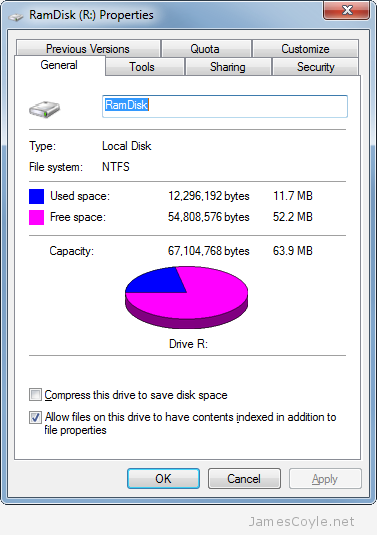
And that’s all there is to it! You now have a fully functioning Windows RAM Disk that you can use for fast file storage. Don’t forget, anything on the Ram Disk will be lost when you restart your computer.


Downgrade an OBIEE RPD Version

Category : How-to

Get Social!

oracle-biAn RPD file saved by one version of the OBIEE Administration Tool cannot be opened by an older version of the OBIEE Administration Tool or be applied to an older version of an Oracle BI Server. For  this example we’re looking at an RPD created with version 349 of the Administration Tool (that’s the first release of OBIEE 11.1.1.9) and we’re trying to apply it to a server expecting version 326 (that’s the latest patched release of OBIEE 11.1.1.7.150120)

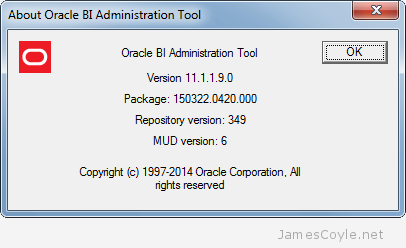
You can check the version of the tool you’re currently using by going to Help > About in the menu and look at the Repository Version line.

About-Oracle-BI-Administration-Tool

You’ll get an nQSError 36010 from the Administration tool if the tool is not of a high enough version:

nQSError: 36010] Server version 326 cannot read the newer version 349 of the repository c:\oracle\middleware\fmw\instances\instance1\bifoundation\OracleBIServerComponent\coreapplication_obis1\repository\Dev_Copy.rpd

Luckily there is a way round it! For certain versions you’ll be able to downgrade your RPD file so that you’re able to open it in the older version of the Admin tool. This isn’t true for all version, but from my test the below major versions worked for the downgrade process:

  • 11.1.1.6 > 11.1.1.5 (318 > 308)
  • 11.1.1.9 > 11.1.1.7 (349 > 326)

To downgrade the RPD file you’ll need to use an Admin Tool version that can open the file. Carrying on our example, we’ll need to use the 11.1.1.9 Admin Tool. You will need the nqgenoldverrpd utility which is part of the Administration Tool installation and can be found in the below path:

C:\Program Files\Oracle Business Intelligence Enterprise Edition Plus Client Tools\oraclebi\orahome\bifoundation\server\bin

The utility has a few switches which you’ll need to enter to tell it what it needs to know to downgrade the RPD file.

  • -P – is the RPD password of the source RPD you wish to downgrade.
  • -I –  is the source RPD you wish to downgrade.
  • -O – is the target name and path for the downgraded RPD
  • -V – is the RPD version to downgrade to.

There is also a -F which will force the downgrade process to clear any expressions that cannot be downgraded.

The following example will downgrade an RPD on your desktop with password Admin123 and save it to a new RPD file on your desktop. The downgraded version will be 326 which is OBIEE 11.1.1.7.

First of all, open a CMD prompt in Windows and navigate to the above path, or the path where your Administration Tool is installed.

C:\Program Files\Oracle Business Intelligence Enterprise Edition Plus Client Tools\oraclebi\orahome\bifoundation\server\bin

And execute the nqgenoldverrpd command and substitute your values.

nqgenoldverrpd -P Admin123 -I C:\Users\James\newversion.rpd -O C:\Users\James\oldversion.rpd -V 326

You’ll see the below message once it’s complete:

Reading newversion.rpd...
Preprocessing...
Generating oldversion.rpd of version 326...Done!!!

nqgenoldverrpd File Paths

You can find the nqgenoldverrpd utility installed as part of the OBIEE Admin Tool or under an OBIEE installation on Windows.

  • On Client under : [CLIENT_FOLDER]\oraclebi\orahome\bifoundation\server\bin\nqgenoldverrpd.exe
  • On Server under : $MW_HOME\bifoundation\server\bin\nqgenoldverrpd

Access a qcow2 Virtual Disk Image From The Host

Get Social!

A disk image, such as the popular qcow2 disk image can be read and used as a file system without having to attach it to a running VM. That can be handy when you’ve got information on a backed up virtual image and don’t want to turn on a whole VM in order to access some data held on it.

If you’re using a host such as Proxmox then you’ll already have everything installed, but if you’re on some other Debian based system then you’ll need to install the required package:

apt-get install qemu-utils

What we’re trying to achieve is a standard mount point on the host that we can access like we would any other mounted block device. As you can imagine, it’s a little more tricky than just using a mount command along with a file name, but not by much.

Make sure that you have the required kernel module, nbd, loaded:

modprobe nbd

You should then find that you have plenty of object in /dev starting with nbd:

ls /dev/nbd*
/dev/nbd0  /dev/nbd10  /dev/nbd12  /dev/nbd14  /dev/nbd2  /dev/nbd4  /dev/nbd6  /dev/nbd8
/dev/nbd1  /dev/nbd11  /dev/nbd13  /dev/nbd15  /dev/nbd3  /dev/nbd5  /dev/nbd7  /dev/nbd9

Each one of these devices is something you can use to attach a virtual image to, however you can only attach one image per device giving you a total of 16 images you can use at any one time.

Attach a qcow2 Virtual Image File

To attach an image file to one of these devices run the below command, substituting the nbd0 device and /var/lib/vz/images/107/vm-107-disk-1.qcow2 with your own values.

qemu-nbd -c /dev/nbd0 /var/lib/vz/images/107/vm-107-disk-1.qcow2

The device /dev/nbd0 will now contain the virtual image file as a block device and any partitions or volumes on the virtual image will be available for mounting.

You can check the partitions available on the virtual disk using your favorite partitioning tool, gparted, fdisk, etc:

partx -l /dev/nbd0

Partitions are named slightly differently to what you may be used to. With a normal partitioned disk (with no LVM) you’d reference the first partition with /dev/nbd0p1. For example, using a mount command you might use the below:

mount /dev/nbd0p1 /mnt/mntpoint

If you use LVM on the virtual disk image then you won’t be able to mount the partition directly – you’ll need to use the vg suite of tools to detect the logical volume. Run the two below commands vgscan and vgchange as below to detect the logical volumes.

vgscan
  Reading all physical volumes.  This may take a while...
  Found volume group "pve" using metadata type lvm2
vgchange -ay
   3 logical volume(s) in volume group "pve" now active

You can then use pvdisplay to find your volume name and mount it.

lvdisplay

  --- Logical volume ---
  LV Path                /dev/pve/myvolume
  LV Name                myvolume
  VG Name                pve
  LV UUID                jgok7M-c9x1-dTdt-PXXh-8NXf-BzgG-aRsaY7
  LV Write Access        read/write
  LV Creation host, time proxmox, 2015-04-06 20:28:28 +0100
  LV Status              available
  # open                 1
  LV Size                20.00 GiB
  Current LE             5120
  Segments               1
  Allocation             inherit
  Read ahead sectors     auto
  - currently set to     256
  Block device           253:0
mount /dev/pve/myvolume /mnt/mntpoint

Detach a qcow2 Image Virtual Image File

Once you have finished with the virtual image file, you’ll want to detach it and release the nbd process used for IO operations for that image. Assuming that any mounts based on the image have been umount‘d use the qemu-nbd command with the -D switch:

qemu-nbd -d /dev/nbd0

You can also remove the kernel module if you’ve detached all of your virtual images from their /dev/nbdX device:

rmmod nbd


OBIEE With Essbase as a Data Source Using SSO

Get Social!

oracle-biThere are various ways to integrate OBIEE and Essbase when using SSO, each with their own security specifics and implementation difficulty. The three main ways of SSO authentication between OBIEE and Essbase are:

  1. Username and password pass-through – this passes the user name and user password through to the Essbase server with each request. This will not work with some OBIEE Authentication methods such as SAML SSO Authentication due to the fact that the OBIEE server never knows the user password.
  2. CSS Token authentication – This is not recommended any more due to the difficulty in setting it up. This process differers depending on the version of Essbase used.
  3. User Impersonation – this uses an Essbase Admin user (or user with the required permission) for the connection between OBIEE and Essbase however when data is requested, the username is passed to the Essbase server as part of the EssLoginAs function. This function is similar to using su – username in Linux as it assumes the username‘s status despite who initially connected.

Option 1 doesn’t work in all scenarios, such as when OBIEE authentication is done using SAML SSO – so that rules out option 1. Oracle no longer recommends using the CSS Token method due to the complexity involved in setting it up – so that removes option 2 from the pool.

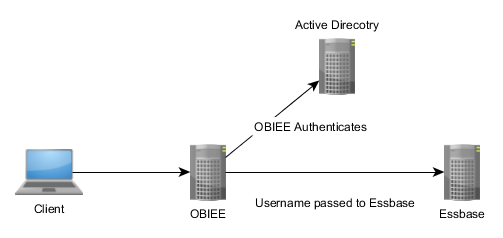
Option 3 is the new, recommended method of connecting OBIEE to an Essbase data source using single sign on. The client authenticates with OBIEE using the Authentication Provider, in this case Active Directory, and then sends the username to the Essbase server to run all further commands (such as ‘give me some data’) as if it were the user running them.

obiee_essbase

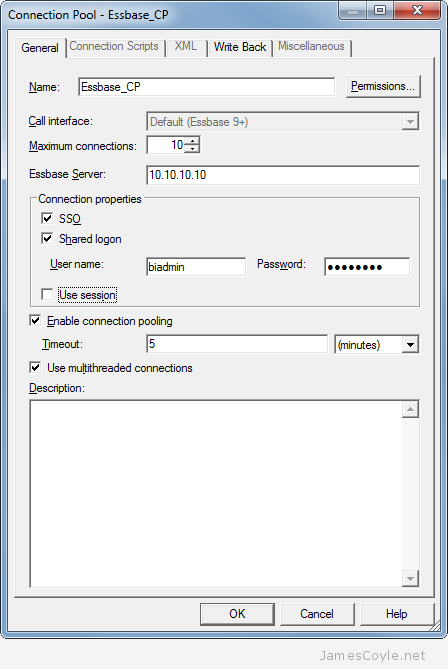
Setting this up is very easy. You need an Essbase user that has permission to run EssLoginAs , such as any admin user. Once you have that, enter that users credentials into the Connection Pool’s User name and Password fields under Shared logon and tick the SSO check box.  And that’s it – you’re good to go!

Connection Pool - Essbase_CP

It’s worth noting that if you look at Sessions in the EAS Console you’ll only see the Admin user name and not the user being impersonated. It can be a bit misleading, but you’ll see something similar to the below in the Essbase logs:

[Thu Jun 18 20:18:12 2015]Local/ESSBASE0///Info(1051529)
Logging in user [essbaseadmin] with security privileges of user [james]

This shows the initial user that is in your Connection Pool, essbaseadmin, and the user being impersonated, james.


Using Dockerfiles to build new Docker images

Category : How-to

Get Social!

docker-logoIn a previous blog post I detailed the steps involved in creating a new Docker container, making some changes and saving the image back to the local repository. The process described works well but it’s a very manual affair which Docker has a solution for.

Docker has a scripting language which can be used to create a new instance with a predefined list of commands and properties which will be used to create your new Docker instance.You could, for example, use a docker file to install Apache, configure the firewall and any further configurations we may need to make.

The benefits to using a Dockerfile, rather than making all the changes directly and saving the image are that the underlying OS and the additions that you wish to make are completely independent. You can, for example, run a Dockerfile on any OS image. Using the example that follows, you could run the Dockerfile on either a Debian or Ubuntu OS without changing a thing.

Create a directory to hold your DockerFile project, which we’ll call apache2 for this example.  I’ll be placing all my DockerFiles in their own project directory under dockerfiles in my home directory.

mkdir -p /home/james/dockerfiles/apache2

Open a text file named Dockerfile in your favourite text editor in the project folder we just created. This is the standard file structure that Docker expects when creating DockerFiles.

vi /home/james/dockerfiles/apache2/Dockerfile

There are various commands we can use within a Dockerfile. The first command is the FROM statement which indicates which image should be used when creating your instance. I’m going to use the ubuntu image which I have previously downloaded to my local Docker server.

FROM ubuntu:14.04

Add MAINTAINER or author for the template. This is your name, username or whatever handle you’d like to be known as.

MAINTAINER James Coyle <[email protected]>

We are now going to use the RUN command to specify the commands that should be executed on the instance during creation. The commands will be executed in the order they appear in the Dockerfile. We will be installing Apache2 so we’ll be using the apt-get command to install.

RUN apt-get update
RUN apt-get upgrade -y
RUN apt-get install -y apache2

Next we’ll make a data directory on the host where we will keep our web files that are to be served by Apache.

RUN mkdir -p /data/apache/www
RUN chown -R root:www-data /data/apache/www

It’s a good idea to separate the Docker container from any user data so that a the container can be used for different purposes. What this mean in our example is that we will keep all the website data (HTML files, etc.) out of our container, leaving only the Apache software and general configuration within the container. This means that we can reuse our Docker image to create containers for other websites.

Using the Docker VOLUME command we can map a directory on the Docker host to a folder inside the container which will be configured once your container is created. The below example makes the directory /data/apache/www available for mapping later.

Add the VOLUME reference to your Dockerfile.

VOLUME /data/apache/www

We will need to be able to reach our container on port 80 so that we can use the Apache service over the network. Docker uses the EXPOSE command followed by a port number to allow incoming traffic to the container. Add the below entry to allow port 80.

EXPOSE 80

We now need to do some find and replace magic to change the Apache default site configuration to point to our new location, rather than the Apache default. This isn’t a Docker specific command, but is required for this example.

RUN sed -i 's#DocumentRoot /var/www#DocumentRoot /data/apache/www#' /etc/apache2/sites-available/000-default.conf

Finally we’ll need to tell Docker what should be executed in order to ‘run’ this container.  For this example, we use the apache2ctl command with the FOREGROUND switch.

ENTRYPOINT /usr/sbin/apache2ctl -D FOREGROUND

And that’s it, your first DockerFile. Run your newly created DockerFile to build the image by changing to the project directory and using the docker build command to create it. Use the -t switch to specify a tag for the image.

cd /home/james/dockerfiles/apache2
docker build -t apache2:test .

It will take a few minutes for the image to build. Once complete, you’ll be able to see it in the Docker image list by using the command docker image.

root@docker:~/apache2# docker images
REPOSITORY  TAG  IMAGE ID     CREATED        VIRTUAL SIZE
apache2     test fdf56ad12ffa 4 minutes ago  228.2 MB


The whole DockerFile:

FROM ubuntu:14.04

MAINTAINER James Coyle <[email protected]>

RUN apt-get update
RUN apt-get upgrade -y
RUN apt-get install -y apache2

RUN mkdir -p /data/apache/www
RUN chown -R root:www-data /data/apache/www

VOLUME /data/apache/www

EXPOSE 80

RUN sed -i 's#DocumentRoot /var/www#DocumentRoot /data/apache/www#' /etc/apache2/sites-available/000-default.conf

ENTRYPOINT /usr/sbin/apache2ctl -D FOREGROUND



Visit our advertisers

Quick Poll

Do you use ZFS on Linux?

Visit our advertisers