Category Archives: How-to

Configure Zentyal 4.2 To Move SPAM Email To Junk Folder

Get Social!

logo-zentyal-blackZentyal, the “all-in-one” exchange server replacement and does quite a good job delivering AD-like management and authentication, file shares, email and webmail straight out of the box. The out-of-the-box set-up is a good starting point and most people will be up and running in no time.

Once you start to dig a little deeper into Zentyal’s configuration, and start to use it day-to-day, you’ll notice that a few basic things are missing.

Take for example the email offering – it all works quite nicely until you start to receive SPAM. You may, as I did, enable the email filter ‘Antispam’ to help fight your SPAM problems. The interesting thing with Zentyal is that enabling all of this will enable you to mark messages as SPAM, but not do anything with it. So now all of your users will still have all their messages in their Inbox, just some will have a SPAM rating in their header.

What you really need is to have Zentyal move all of the SPAM marked messages into a Junk folder (which is actually created for all users by default). To do that you’ll need to create your own Sieve rules configuration to move any received email message to the Junk folder. It’s easy enough to do,  with just a few small configuration file changes.

Log onto your Zentyal server using a Terminal and open the dovecot.conf configuration file using your favourite file editor.

vi /etc/dovecot/dovecot.conf

Add the following code in the ## Plugin settings section at the bottom of the file:

plugin {
    sieve = ~/.dovecot.sieve
    sieve_global_path = /etc/dovecot/sieve/default.sieve
    sieve_dir = ~/sieve
    sieve_global_dir = /etc/dovecot/sieve/global/
}

Create the global directory, if it doesn’t already exist:

mkdir -p /etc/dovecot/sieve/global

And add your Sieve rule file to move all incoming email into the Spam/ Junk folder which has the X-Spam-Flag set by SpamAssassin:

require ["fileinto"];
# rule:[SPAM]
if header :contains "X-Spam-Flag" "YES" {
        fileinto "Spam";
}

Finally you’ll need to restart dovecot for the changes to be picked up.

service dovecot restart

And that’s all there is too it. All new SPAM mail will be moved directly into the Spam/ Junk folder.

How To Find Your Public IP Address From The Terminal

Tags :

Category : How-to

Get Social!

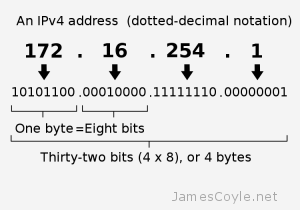
ip-address-deconstructionFinding the IP address of your local machine couldn’t be easier – ipconfig on Windows or ifconfig on Linux will bring up all of your local network interfaces and list the IP addresses associated with them. Finding out your public IP address, which is the IP addresses associated with your internet connection can be a little more tricky.

Whatsmyip will show your your public IP address on their webpage when you visit them. Perhaps more interestingly, when visited with Linux curl or wget only the IP public address is displayed without any HTML or other content around it.

You can therefore use curl to read your public IP address into a variable, and then use it in as you need to.

IP=$(curl -s http://www.whatsmyip.website)
echo $IP

Javascript to Refresh All OBIEE Dashboard Analysis

Get Social!

oracle-biOBIEE isn’t designed for (near) real time reporting, and as such doesn’t have an out of the box page refresh option.
There are times when I’ve needed a dashboard to be refreshed – when looking at query performance dashboards, for example, and would like the charts and tables to be constantly updated.

After searching on-line I found a few different ways to to refresh a dashboard but they all refreshed the whole page, rather than just the Analysis themselves. It’s not the end of the world, but it results in the whole page flickering as the Browser reloads it. It’s most annoying when you’re half way through the ‘Dashboards’ menu, about to click the navigate away and BAM! The page refreshes and you loose your position on the menu.

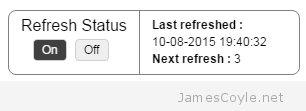
The following script is a combination of HTML, CSS and JavaScript code to loop through each Analysis on a single Dashboard page and issue the OBIEE Refresh command. A small box towards the bottom left hdashboard-refreshand side of the page that overlays the Dashboard with some controls and stats for the page refresh. It will show when the page was last refreshed, a countdown in seconds to the next refresh and a button to start and stop the automatic refresh.

chrome_256x256 Works in Chrome 44 internet-explorer_256x256 and Internet Explorer 8 and 10

There are 3 variables that are user changeable:

  • vRefreshDuration controls how many seconds between refreshes. Make sure this is higher than how long each query takes, otherwise an Answer will be asked to refresh before it’s finished refreshing!
  • vMessageLastRefreshed is the message displayed before the date and time of the last refresh.
  • vMessageNextRefresh is the message displayed before the countdown in seconds to the next refresh.

Feel free to change the below code, but please keep the header information. If you make any improvements, please let me know!

To add the Refresh code to a Dashboard, create a Text Dashboard drag-text-dashboard-objectObject and drag it onto any Dashboard that you’d like to automatically refresh. Then paste the below code into the Text box and check the ‘Contains HTML Markup’ checkbox. Click save and view your Dashboard!

<!--
        Title:      OBIEE in page refresh
	Author:     James Coyle (www.jamescoyle.net)
	Date:       2015-08-10
	Description:Self contained code to loop through each analysis on a 
                    Dashboard page and issue a Refresh command. This will 
                    refresh each analysis, going back to the data source, 
                    without refreshing the whole page. 
				 
	Version:    2015-08-10                  First revision. 
				
-->
<style type="text/css">
.toggle {
    margin: 4px;
    background-color: #EFEFEF;
    border-radius: 4px;
    border:1px solid #D0D0D0;
    overflow: auto;
    float: left;
}
.toggle label {
    float: left;
    width: 32px;
}
.toggle label span {
    text-align: center;
    padding: 3px 0px;
    display: block;
    cursor: pointer;
}
.toggle label input {
    position: absolute;
    top: -20px;
}
.toggle .input-not-checked:hover{
    background-color: #AAAAAA;
}
.toggle .input-checked{
    background-color: #404040;
    color: #F7F7F7;
	cursor: default;
}
#left-refresh-wrapper{
	float: left;
	padding: 6px 12px 6px 12px;
}
#refresh-heading-wrapper{
	font-size: 16px;
}
#refresh-button-wrapper{
	width: 90px;
	margin-left: auto;
	margin-right: auto;
}
#refresh-text-wrapper{
	padding: 6px 0px 6px 12px;
	float: left;
	font-size: 12px;
	line-height: 17px;
	border-left: 1px solid grey;
}
#floating-refresh-wrapper{
	border: 1px solid grey;
	width: 290px;
	overflow: hidden;
	border-radius: 8px;
	position: fixed;
	left: 20px;
	bottom: 22px;
	margin: auto; 
	background: rgb(255, 255, 255);
    background: rgba(255, 255, 255, .7);
}


</style>
<div id="floating-refresh-wrapper">
	<div id="left-refresh-wrapper">
		<div id="refresh-heading-wrapper">
			Refresh Status
		</div>
		<div id="refresh-button-wrapper">
			<div class="toggle">
				<label id="refresh-on" onclick="event.preventDefault(); toggleButton(this);"><input type="radio" name="toggle"><span class="input-checked">On</span></label>    
			</div>
			<div class="toggle">
				<label id="refresh-off" onclick="event.preventDefault(); toggleButton(this);"><input type="radio" name="toggle"><span class="input-not-checked">Off</span></label>
			</div>
		</div>
	</div>
	<div id="refresh-text-wrapper">
		<div id="last-refresh">Please wait...</div>
		<div id="next-refresh">Please wait...</div>
	</div>
	<div style="clear: both;"></div> 
</div>
<script type="text/javascript">
	// Get report IDs into an array
	function initRefresh(){
		if (typeof vReportIds !== 'undefined'){
			for (key in vReportIds){
				if (key != 'undefined' && key != null){
					vObjectIds.push(vReportIds[key]);
				}
			}
		}
		else{
			vObjectIds = [];
		}
	}

	// Start timer if refreshTimerObject is null
	function startRefreshTimer(){
		if (refreshTimerObject === null || typeof refreshTimerObject === 'undefined'){
			refreshTimerObject = setInterval(function () {timerTick()}, 1000);
			vCountdown = vRefreshDuration;
		}
	}
	
	// Stop timer if refreshTimerObject is not null
	function stopRefreshTimer(){
		if (refreshTimerObject !== null && typeof refreshTimerObject !== 'undefined'){
			clearTimeout(refreshTimerObject);
			refreshTimerObject = null;
			updateNextRefresh('-');
		}
	}

	// Loop known report IDs and send them to the OBIEE refresh function
	function timerTick(){
		if (vCountdown === 1){
			refreshReports();
			vCountdown = vRefreshDuration;
			updateLastRefreshed();
		}
		else{
			vCountdown = vCountdown - 1;
		}
		
		updateNextRefresh(vCountdown);
		
	}
	
	// Update display countdown
	function refreshReports(){
		for (key in vObjectIds){
			HereLink(vObjectIds[key], 'Refresh');
		}
	}
	
	// Update last refresh time on Dashboard
	function updateLastRefreshed(){
		document.getElementById("last-refresh").innerHTML = vMessageLastRefreshed + formatDate(new Date());
	}
	
	function formatDate(dt) {
		var dd = dt.getDate();
		var m = dt.getMonth() + 1;
		var yyyy = dt.getFullYear();
		var hh = dt.getHours();
		var mm = dt.getMinutes();
		var ss = dt.getSeconds();
		return padZero(dd, 2) + '-' + padZero(m, 2) + '-' + yyyy + ' ' + padZero(hh, 2) + ':' + padZero(mm, 2) + ':' + padZero(ss, 2) ;
	}
	
	function padZero(v, l){
		var r = v;
		if (v.toString().length < l){
			for(a = v.toString().length; a < l; a++){
				r = '0' + v;
			}
		}
		return r;
	}
	
	// Update last refresh time on Dashboard
	function updateNextRefresh(i){
		document.getElementById("next-refresh").innerHTML = vMessageNextRefresh + i;
	}
	
	// toggle button and change timer status
	function toggleButton(o){
		if (o.childNodes[1].innerHTML !== vLastSpanClick){
			vLastSpanClick = o.childNodes[1].innerHTML;
			var spans = document.getElementById('refresh-button-wrapper').getElementsByTagName('span');
			for (el in spans){
				spans[el].className = 'input-not-checked';
			}
			
			o.childNodes[1].className = 'input-checked';
			
			if (o.childNodes[1].innerHTML === 'Off'){
				stopRefreshTimer();
			}
			else{
				startRefreshTimer();
			}
		}
	}
	
	var vRefreshDuration = 5;
	var vMessageLastRefreshed = '<strong>Last refreshed :</strong> <br />';
	var vMessageNextRefresh =  '<strong>Next refresh : </strong>';
	
	var vObjectIds = [];
	var refreshTimerObject = null;
	var vCountdown = 0;
	var vLastSpanClick = 'On';
	
	initRefresh();
	updateLastRefreshed((new Date).toLocaleString());
	updateNextRefresh(0);
	startRefreshTimer();
	
</script>


Download Oracle Java From The Terminal With wget

Get Social!

java-logoOracle have a very restrictive license that applies to most of their software downloads which prohibits you from distributing the binaries yourself. What this means, for example, is that you could not download the Java binaries and upload them to your own APT repository for others to use.

There are a few workarounds that exist to help making this install easier, but here we’re going to look at downloading the Java runtime environment (JRE) binaries and installing them all from a command line.

Use wget to download the binaries, so make sure that’s available on your system. If it isn’t, simply apt-get install wget.

One of the important things to note is that the Java version changes over time and therefore the links and commands below may need to be changed to ensure you’re always getting the latest version. Check out the Java Download Page to make sure you have the latest.

wget --header "Cookie: oraclelicense=accept-securebackup-cookie" http://download.oracle.com/otn-pub/java/jdk/8u51-b16/server-jre-8u51-linux-x64.tar.gz

I’m using an minimal version of Debian that doesn’t have the worlds Certificate Authorities installed and therefore wget gives me an error:

ERROR: cannot verify edelivery.oracle.com's certificate, issued by '/C=US/O=GeoTrust, Inc./CN=GeoTrust SSL CA':
  Unable to locally verify the issuer's authority.
To connect to edelivery.oracle.com insecurely, use `--no-check-certificate'.

The fix is to either install the correct CA certificate on the machine or add the no-check-certificate switch to wget to avoid checking the certificate:

wget --no-check-certificate --header "Cookie: oraclelicense=accept-securebackup-cookie" http://download.oracle.com/otn-pub/java/jdk/8u51-b16/server-jre-8u51-linux-x64.tar.gz

Once you have the Java archive downloaded you’ll need to create a target folder and extract the downloaded archive with tar:

mkdir /opt/jre
tar -zxf server-jre-8u51-linux-x64.tar.gz -C /opt/jre

The last couple of steps are to tell your OS to use the Java binaries you’ve just moved into place.

update-alternatives --install /usr/bin/java java /opt/jre/jdk1.8.0_51/bin/java 1000
update-alternatives --install /usr/bin/javac javac /opt/jre/jdk1.8.0_51/bin/javac 1000

Running anything in Java, or using the -version switch should now use your newly installed binaries.

java -version
java version "1.8.0_51"
Java(TM) SE Runtime Environment (build 1.8.0_51-b16)
Java HotSpot(TM) 64-Bit Server VM (build 25.51-b03, mixed mode)


Git SSL Certificate Problem Caused By Self Signed Certificates

Category : How-to

Get Social!

git-logoIt’s never been easier to set up your own Git server to host your own git repositories for your projects. Thanks to people like the folks over at GitLab you can be up and running in no time at all.
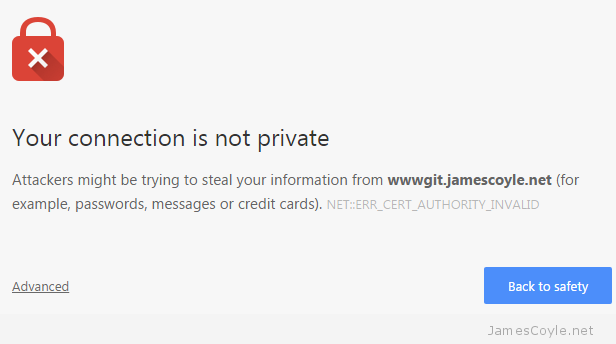
If you host something like this yourself, you’ll probably have entered the world called self signed certificates. These are SSL certificates that have not been signed by a known and trusted certificate authority. There is no security concern using a self signed certificate, the level of security will be similar to a paid for certificate, the problem is that your commuter won’t know that it can trust the certificate. You may have seen this error in a Web Browser, such as Chrome:

chrome-ssl-warning

With Git, however, you’ll get an error from the git command line tool similar to the below:

$ git clone https://wwwgit.jamescoyle.net/test/test-project.git
Cloning into 'test-project'...
fatal: unable to access 'https://[email protected]/test/test-project.git/': SSL certificate problem: unable to get local issuer certificate

The preferred method of dealing with this error is to add the Certificate Authority’s signing certificate as a trusted Certificate Authority on your computer.The way to do this differs depending on your OS and is out of scope for this post.

There are two Git specific methods of forcing Git to accept the self signed certificates, which don’t require you to import the CA certificate to your computers Trusted  CA store:

Turn off Git SSL Verification

You can stop the Git client from verifying your servers certificate and to trust all SSL certificates you use with the Git client. This has it’s own security risks as you would not be warned if there was a valid problem with the server you are trying to connect to.

That said, it’s the quickest and easiest fix for a non trusted server certificate. Simply run the below git command on your Git client.

git config --global http.sslVerify false

Tell Git Where Your Certificate Authority Certificates Are

Another option is to point your Git client towards a folder that contains the Certificate Authority certificate that was used to sign your Git server’s SSL certificate. You may not have one of these if you’re using Self Signed certificates.

Save the CA certificate to a folder on your Git client and run the following git command to tell your Git client to use it when connecting t the server:

git config --system http.sslCAPath /git/certificates


Windows Has Symbolic Links And It’s Called mklink

Get Social!

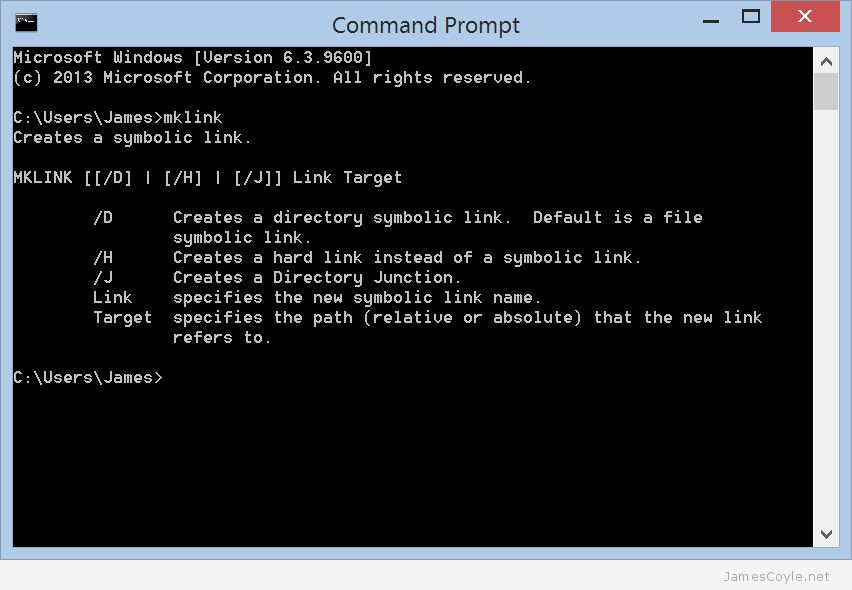
A symbolic Link is a reference to a file which is stored in another location to make a file or folder accessible from that location. For example, if you have a directory in c:\Users\James and wanted to make that accessible from c:\James you could create a symbolic link of c:\Users\James to the location c:\James which would mean anything stored in c:\Users\James such as test.txt would be accissible from c:\James\test.txt.

This has been available in Linux since the dawn of time and is one of the common file system functions. It’s used as standard by Apache2 on Ubuntu to enable or disable site config files. What you might not know, however, is that symlinks are available on Windows and have been for some time. In Windows symlinks are created using a command line application called mklink.

mklink-command-prompt

A link works exactly like the object is actually in that location; it’ll show in Windows Explorer, and CMD prompt and all Save As dialogues.

Create an mklink

To create a directory link you’ll need to open a command prompt and use the mklink command as below with your values substituted.

mklink /j [linkname] [target]
  • [linkname] is the new object that will be created on the file system to point to your [target] location.
  • [target] is the file system location of the file or directory that you would like to link to.

You can think of this process in a similar way to creating a Windows shortcut. The [linkname] is the place you will save your shortcut and the [target] is the place your shortcut will take you when you double click it. Remember an mklink is not the same as a shortcut because an mklink will make the target location look like it’s physically available at the link location where a shortcut will simply send you to the target location when clicked.

Delete an mklink

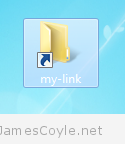
mklink-folder-exampleChecking if a folder is a link or a regular file system object is quite easy. If you look at it in Windows Explorer will show a small arrow on the icon, much like a shortcut, or you can look at it using dir in a Command Prompt similar to below:

c:\Users\James>dir

14/07/2015  19:37  <JUNCTION> my-link [C:\Users\James\Desktop\my-link-source]

You can see that the directory link called my-link is referenced as <JUNCTION>.

Deleting the mklink is then done in the same way as deleting any other filesystem object – simply delete it using Windows Explorer.


Visit our advertisers

Quick Poll

How often do you change the password for the computer(s) you use?

Visit our advertisers