Category Archives: How-to

Install Splunk on Ubuntu

Category : How-to

Get Social!

splunkSplunk is the heavyweight open source software which enables you to index, visualise and explore virtually any machine generated data. Splunk is often used to consume Apache and Nginx web server logs as well as website clicks and any other data which maintains a constant format.

Installing Splunk on any Debian based Linux distribution, such as Ubuntu, couldn’t be easier with the .deb package that available for download.

Visit the Splunk download page to download the Splunk .deb package:

Upload the file to your Ubuntu server and place it a temporary directory.

Run the dpkg command to install the Splunk server.  The file name of the .deb file may change as new versions are made available so make sure that you have downloaded.

dpkg -i splunk-6.0.3-204106-linux-2.6-amd64.deb

The output of the command will look like the below example.

Selecting previously unselected package splunk.
(Reading database ... 20803 files and directories currently installed.)
Unpacking splunk (from splunk-6.0.3-204106-linux-2.6-amd64.deb) ...
Setting up splunk (6.0.3-204106) ...
complete

Next we need to create the init.d script so that we can easily start and stop Splunk. Change the the Splunk directory and run the splunk executable with the below arguments.

cd /opt/splunk/bin/
./splunk enable boot-start

Press SPACE to view all of the license agreement and then Y to accept it.

Start Splunk with the service command.

service splunk start

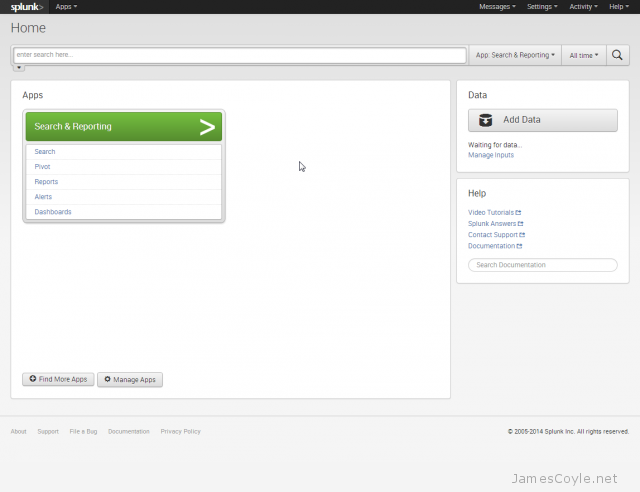
You will now be able to access Splunk’s web GUI which is running on port 8000.

http://10.10.10.10:8000/

Open the URL in the browser and login with the below details:

  • User Name: admin
  • Password: changeme

splunk-dashboard-new


Apache Redirect Root URL to Subfolder

Get Social!

The Apache HTTP is able to redirect traffic to a specific URL with use of the Apache mod_rewrite. mod_rewrite can do at least 100 other things and I’ll include some of those in a later blog post.

Let’s take a look at a simple redirection of traffic from / to /mysubfolder.

For example, this would redirect all traffic sent to http://www.jamescoyle.net/ to http://www.jamescoyle.net/mysubfolder/

This can be very helpful when you are using a reverse proxy and the application you are proxying is on a sub folder in the URL path. You can simply use this technique to redirect all users to the subdirectory folder path.

Make sure the module is enabled. In Ubuntu you can simply run the a2enmod command however in RHEL/ Cent OS you may need to add the module manually to your httpd.conf file.

a2enmod rewrite

Then in your sites file you will need to add the following code.

RewriteEngine on
RewriteCond %{REQUEST_URI} ^/$
RewriteRule (.*) /mysubfolder/ [R=301]
  • RewriteEngine on is used to specify to Apache that this site will use Rewrite rules to transform the URL
  • RewriteCond is the match part of the pattern. If the URL matches this pattern then RewriteRule will be applied. This particular pattern is checking if the requested URL path is equal to /.
  • RewriteRule is going to add /mysubfolder/ to the URL which only contains the domain due to the above RewriteCond already performing the check.

Apache Active Directory Group Authentication

Get Social!

apache-logoThe Apache HTTP server can be used with LDAP or Microsoft’s Active Directory to authenticate users before viewing a webpage or site.

Before getting started, you will need to have the required Apache mods installed. Run the following command to enable the required LDAP mods.

a2enmod ldap authnz_ldap

The LDAP configuration generally goes in the Location tags, as per the below example.

<Location />
        Order allow,deny
        Allow from all
	AuthzLDAPAuthoritative on
	AuthLDAPBindDN "CN=ldapservice,CN=Users,DC=jamescoyle,DC=net"
	AuthLDAPBindPassword "mypassword"
	AuthLDAPURL "ldap://jamescoyle.net/OU=Users,DC=jamescoyle,DC=net?sAMAccountName?sub?(objectClass=*)"
	AuthType Basic
	AuthName "JamesCoyle.net Authentication"
	AuthBasicProvider ldap
	AuthLDAPGroupAttributeIsDN on
	AuthLDAPGroupAttribute member
	Require ldap-group CN=mygroup,OU=Groups,DC=jamescoyle,DC=net
</Location>

Lets break down each attribute in the above config:

  • AuthzLDAPAuthoritative specifies to Apache that LDAP/ Active Directory authentication should override any other form of authentication.
  • AuthLDAPBindDN is the user DN which Apache will bind to when connecting to your LDAP/ Active Directory server.
  • AuthLDAPURL is the LDAP/ Active Directory URL which specifies your LDAP/ Active Directory server, the location where the users are stored within the directory and the attributes which will be used as a username when authenticating.
  • AuthType is the type of authentication which will be used. Basic gives us the dialogue box to enter our credentials.
  • AuthName is the text which will appear in the login dialogue box. This can differ depending on the web browser.
  • AuthBasicProvider specifies that we will use LDAP as the authentication mechanism.
  • AuthLDAPGroupAttributeIsDN when set to ON this option specifies to use the DN of the user when checking for group permissions in the LDAP/ Active Directory server. Otherwise the username will be used, in this example sAMAccountName.
  • AuthLDAPGroupAttribute is the attribute in the LDAP/ Active Directory server which is used to check for group membership.
  • Require when set to ldap-group indicates to Apache that the user must be in the specified group to allow access.

Installing the OpenVZ Web Panel

Get Social!

There are many web front ends to the OpenVZ virtualisation server which offer varying functionality and are at different stages of development.

Take a look at the OpenVZ Control Panels wiki page for a list and a brief description of what each one does.

One that I have found to be very stable, easy to use and the most feature rich is the OpenVZ Web Panel (OWP). It allows you to create and destroy new OpenVZ containers, manage networking, download new OS templates and a few other things all from a clean web based front end.

Installing the OpenVZ Web Panel

Installing the OpenVZ Web Portal couldn’t be easier – simply run a one-line command on the terminal and let the script do the rest. The script will download all the required dependencies, such as Ruby, and set everything up so that you have a working web address which you can use to administer your OpenVZ server.

Run the below command on your OpenVZ server.

wget -O - http://ovz-web-panel.googlecode.com/svn/installer/ai.sh | sh

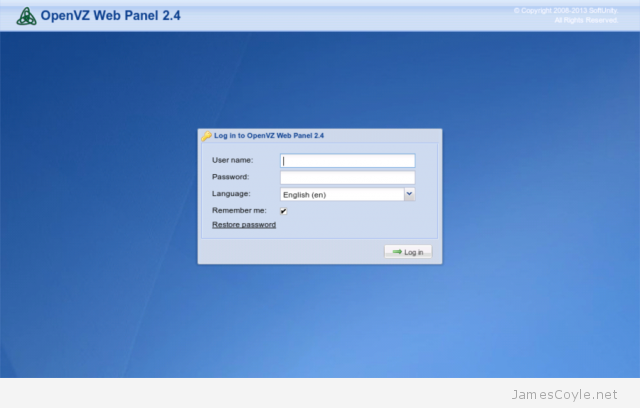
Once the script completes, the web server will be available on your servers IP or hostname and port 3000. The default username and password, which are required for login are:

  • Username: admin
  • Password: admin

openvz-web-panel-login

If you have iptables installed you will need to add a new rule for the default port 3000.

iptables -A INPUT -i eth0 -p tcp --dport 3000 -m state --state NEW,ESTABLISHED -j ACCEPT
iptables-save

You can also change the port number by editing the config file of OWP.

vi /etc/owp.conf

And change the PORT attribute to the new port number. Remember to update your iptables configuration to the new port number. See my iptables cheat sheet for more information.

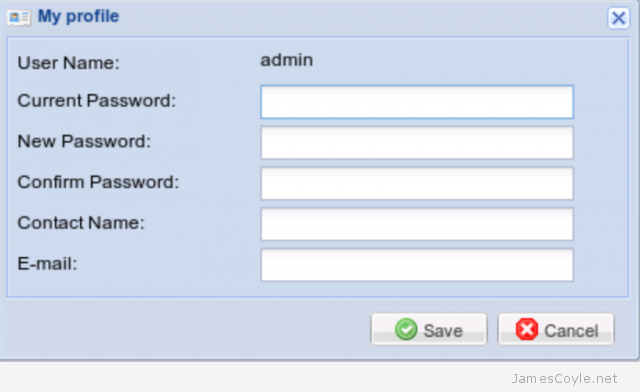
Once you have logged in you will need to change the default admin password. Click on My Profile on the left hand side and fill in the information as requested.

openvz-web-panel-change-password

The next time you log in you will be able to log in with your new password.


Install an OpenVZ Server on CentOS

Category : How-to

Get Social!

openvz-logo-150px_new_3OpenVZ servers are hypervisors which allow you to create numerous guest instances within a single hardware node. Unlike other products which offer full hardware virtualisation, OpenVZ creates containers – isolated program execution environments – that share the hardware nodes kernel.

OpenVZ works very differently to the more mainstream hypervisors like VMWare’s ESXI, KVM or Xen and therefore comes with some benefits as well as a few problems. In the benefit category, the big one is performance.  OpenVZ containers loose very little power from what is available on a bare metal machine. The big drawback is that an OpenVZ container can only run Linux guests because each guest is actually using the hardware nodes kernel.

OpenVZ recommends running an OpenVZ server on Red Hat Linux, or one of it’s derivitives such as CentOS. Before starting this tutorial, make sure that you have a freshly installed CentOS server with terminal access. For this example, I’m going to use a fresh install of CentOS 6.5.

There are three stages to the installation of the OpenVZ software; install the OpenVZ kernel, configure system parameters and install the OpenVZ tools.

Install the OpenVZ kernel

All of the packages required to install an OpenVZ server are available in a repository which needs to be added to yum. Once this is complete, you can use yum to install all of the OpenVZ packages, including the kernel. Using this method, we can also keep our packages up to date as future releases are made available by the OpenVZ team.

Download the OpenVZ repository details and add the GPG key which is used to sign each package.

wget -P /etc/yum.repos.d/ http://ftp.openvz.org/openvz.repo
rpm --import http://ftp.openvz.org/RPM-GPG-Key-OpenVZ

We can now install the OpenVZ kernel by running the below command. Type y when prompted to begin the download and installation.

yum install vzkernel

Configure system parameters

We need to configure various system parameters for OpenVZ to work, especially on the networking side.

Open up the sysctl.conf file.

vi /etc/sysctl.conf

Either add or amend the following settings.

# packet forwarding enabled and proxy arp disabled
net.ipv4.ip_forward = 1
net.ipv6.conf.default.forwarding = 1
net.ipv6.conf.all.forwarding = 1
net.ipv4.conf.default.proxy_arp = 0

# Enables source route verification
net.ipv4.conf.all.rp_filter = 1

# Enables the magic-sysrq key
kernel.sysrq = 1

# We do not want all our interfaces to send redirects
net.ipv4.conf.default.send_redirects = 1
net.ipv4.conf.all.send_redirects = 0

OpenVZ needs SELinux to be disabled. Open up the selinux config file and make the SELINUX attribute disabled.

vi /etc/sysconfig/selinux

For example:

 This file controls the state of SELinux on the system.
# SELINUX= can take one of these three values:
#     enforcing - SELinux security policy is enforced.
#     permissive - SELinux prints warnings instead of enforcing.
#     disabled - No SELinux policy is loaded.
SELINUX=disabled
# SELINUXTYPE= can take one of these two values:
#     targeted - Targeted processes are protected,
#     mls - Multi Level Security protection.
SELINUXTYPE=targeted

Install OpenVZ tools

Once the kernel is set up we need to install the OpenVZ tools for creating and managing an OpenVZ server.

yum install vzctl vzquota

You can now reboot your machine. When your machine starts up, make sure that the OpenVZ kernel is loaded with the uname -r command. The result should be similar to below, although the version numbers will change with time.

# uname -r
2.6.32-042stab084.26

And that’s it! You now have an OpenVZ server up and running.


See Basic container management for details on creating your first CT.


Basic OpenVZ Container Management

Category : How-to

Get Social!

OpenVZ containers, or CT for short, work on the premise of using a template as the starting point for each virtual instance. The Template usually holds the basic applications, such as an SSH server, to create a functioning running instance.

See my blog post on Setting up an OpenVZ server for information on creating an OpenVZ server.

Download an OpenVZ Template

OpenVZ hosts a suite of OpenVZ templates for all common Linux distributions. Before you can create a CT you will need to choose a template from the below site and download it to your OpenVZ server. The template must be saved in your servers template directory, by default this is /vz/template/cache.

Download your templates from: http://wiki.openvz.org/Download/template/precreated

I will use the Debian 7 template for this example.

wget -P /vz/template/cache http://download.openvz.org/template/precreated/debian-7.0-x86_64.tar.gz

Create your first OpenVZ container

Most of the administration tasks for a container, such as creating and destroying a container, use the vzctl command.

Before we create our first container we need to understand the components of the create command. This is an example of a basic create command:

vzctl create 200 --ostemplate debian-7.0-x86_64 --config basic
  • 200 is the container ID. This is a unique ID which represents the CT being created. We will use this ID later when we start and stop the machine.  You can use virtually any number, but we usually use a three digit number.
  • –ostemplate is the template file name which we downloaded in the previous section. This file, with a tar.gz extention, must exist in the template directory of your OpenVZ server. By default, the templates directory is /vz/template/cache.
  • –config is what decides how much RAM, disk and other properties the CT will assume. OpenVZ have created some example configurations for us, basic being one of them.

Example:

# vzctl create 200 --ostemplate debian-7.0-x86_64 --config basic 
Creating container private area (debian-7.0-x86_64)
Performing postcreate actions
CT configuration saved to /etc/vz/conf/200.conf
Container private area was created

List available OpenVZ containers

Now that we have created a container, we can list the details with vzlist. Running this command will list all turned on containers so we’ll need the -a switch to list the turned off ones as well.

# vzlist -a
      CTID      NPROC STATUS    IP_ADDR         HOSTNAME
       200          - stopped   -               -

Start/ Stop/ Restart an OpenVZ container

Starting, stopping and restarting a container are done via the vzctl command with either start, stop or restart and the container ID.

vzctl start 200
vzctl stop 200
vzctl restart 200

Configure an OpenVZ container

There are many configuration options for an OpenVZ container which specify disk space, SWAP, networking, CPU and plenty of others. I’ll cover a few basic options here.

Networking is a common option, and something we will need in our OpenVZ container. First lets set the hostname to example.jamescoyle.net.

vzctl set 200 --hostname example.jamescoyle.net --save

Next, let’s add an IP address on the same range as our host. Make sure you check that this IP is free and not already in use by another machine on your network.

vzctl set 200 --ipadd 10.10.10.100 --save

The last part of our basic network configuration is to add some nameservers so that DNS entries can be resolved. I’ll use the Google nameservers for this example but you may also wish to include your own local servers.

vzctl set 200 --nameserver 8.8.8.8 --nameserver 8.8.4.4 --save

Execute commands in an OpenVZ container

Using this current example, we can’t connect to our container because we haven’t set a root password. We need to issue the passwd command inside the container and type a password.

There are two ways to do this. We can enter the container directly from the host which will give us a shell running on the container itself.

vzctl enter 200

You can then issue any further commands you require.

The other option is to run a single command from the host using vzctl exec followed by the command to execute.

# vzctl exec 200 passwd
Enter new UNIX password: mypassword
Retype new UNIX password: mypassword
passwd: password updated successfully

Remove an OpenVZ container

Before you remove an OpenVZ container, you must make sure it is stopped. Once the container is stopped, you can use the vzctl destroy command to delete the container permanently.

vzctl destroy 200

Be careful, there is no confirmation for the destroy command!


Visit our advertisers

Quick Poll

What type of VPN protocol do you use?

Visit our advertisers