 Ceph is an open source storage platform which is designed for modern storage needs. Ceph is scalable to the exabyte level and designed to have no single points of failure making it ideal for applications which require highly available flexible storage.
Since Proxmox 3.2, Ceph is now supported as both a client and server, the client is for back end storage for VMs and the server for configuring storage devices. This means that a Ceph storage cluster can now be administered through the Proxmox web GUI and therefore can be centrally managed from a single location. In addition, as Proxmox now manages the Ceph server the config can be stored in Proxmox’ shared file system meaning that the configuration is immediately replicated throughout the entire cluster.
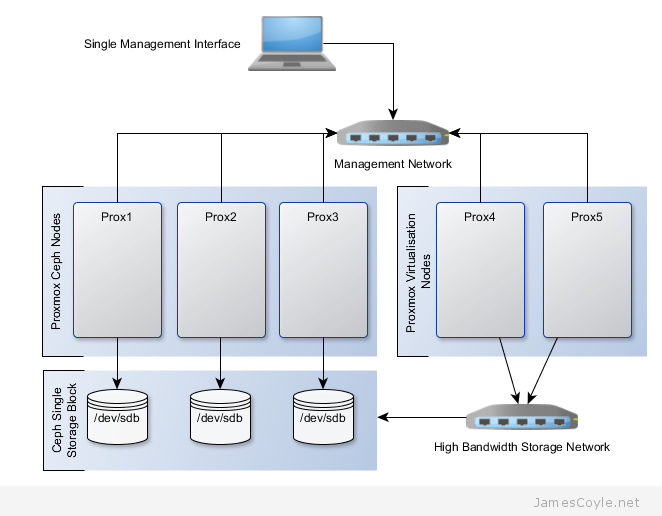
The below diagram shows the layout of an example Proxmox cluster with Ceph storage.
- 2 nodes are used dedicated to running VMs and use the Ceph storage hosted by the other nodes.
- Two networks are used, one for management and application traffic and one for Ceph traffic only. This helps to maintain sufficient bandwidth for storage requirements without affecting the applications which are hosted by the VMs.
Before getting started with setting up the Ceph cluster, we need to do some preparation work. Make sure the following prerequisites are met before continuing the tutorial.
- You have Proxmox cluster with the latest packages from the pvetest repository. You must have at least three nodes in your cluster. See How to set up a cluster.
- SSH Keys are set up between all nodes in your cluster – Proxmox does this automatically as part of clustering but if you are using a different user, you may need to set them up manually.
- NTP is set up on all nodes in your cluster to keep the time in sync. You can install it with: apt-get install ntp
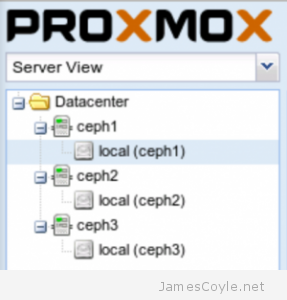 The rest of this tutorial will assume that you have three nodes which are all clustered into a single Proxmox cluster. I will refer to three host names which are all resolvable via my LAN DNS server; prox1, prox2 and prox3 which are all on the jamescoyle.net domain. The image to the left is what is displayed in the Proxmox web GUI and details all three nodes in a single Proxmox cluster. Each of these nodes has two disks configured; one which Proxmox is installed onto and provides a small ‘local’ storage device which is displayed in the image to the left and one which is going to be used for the Ceph storage. The below output shows the storage available, which is exactly the same on each host. /dev/vda is the root partition containing the Proxmox install and /dev/vdb is an untouched partition which will be used for Ceph.
root@prox1:~# fdisk -l | grep /dev/vd
Disk /dev/vdb doesn't contain a valid partition table
Disk /dev/mapper/pve-root doesn't contain a valid partition table
Disk /dev/mapper/pve-swap doesn't contain a valid partition table
Disk /dev/mapper/pve-data doesn't contain a valid partition table
Disk /dev/vda: 21.5 GB, 21474836480 bytes
/dev/vda1   *        2048     1048575      523264   83  Linux
/dev/vda2         1048576    41943039    20447232   8e  Linux LVM
Disk /dev/vdb: 107.4 GB, 107374182400 bytes
Now that I’ve set the scene, lets start to put together our Ceph cluster! Before using the new Proxmox web GUI you must run a few SSH commands to set up the initial Ceph instance.
Run the below command on all of the nodes which you will use as a Ceph server. This will download and set up the latest Ceph packages.
pveceph install
Create the Ceph config file by initialising pveceph. The Ceph config file will be created in your /etc/pve/ directory called ceph.conf. You should only run this on one node.
pveceph init --network 192.168.50.0/24
The next step is to set up the Ceph monitors for your cluster. So that you don’t have a single point of failure, you will need at least 3 monitors. You must also have an uneven number of monitors – 3, 5, 7, etc.
pveceph createmon
The rest of the configuration can be completed with the Proxmox web GUI. Log in to your Proxmox web GUI and click on one of your Proxmox nodes on the left hand side, then click the Ceph tab.
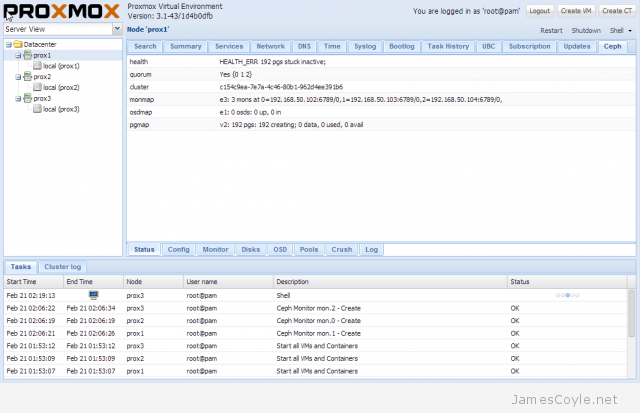
Next, you will add a disk to the Ceph cluster. Each disk creates to as an OSD in Ceph which is a storage object used later by the Ceph storage pool. Click on the Disks tab at the bottom of the screen and choose the disk you would like to add to the Ceph cluster. Click the Create: OSD button and click Create to create an OSD. Repeat these steps for each Proxmox server which will be used to host storage for the Ceph cluster.
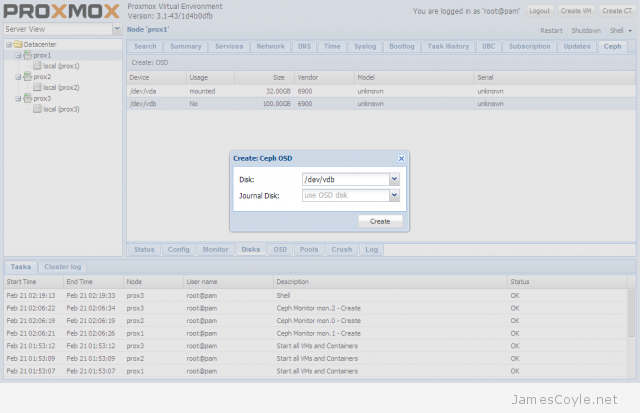
If the Create: OSD button is greyed out, it’s because the disk is not in a state where Ceph can use it. It’s likely because you have partitions on your disk. Run the fdisk command on the disk and press d to delete the partitions and w to save the changes. For example:
fdisk /dev/vdb
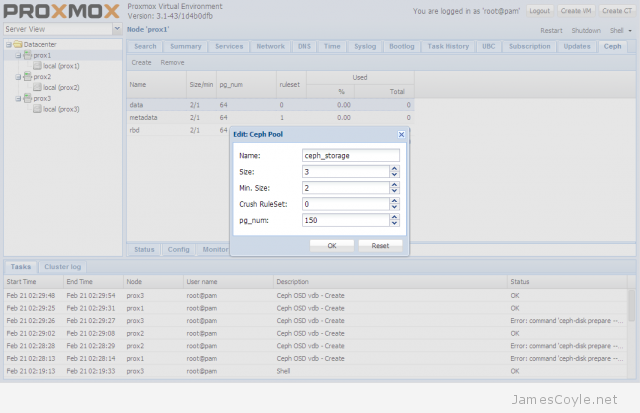
The last step in creating the Ceph storage cluster is to create a storage pool. Click the Pools tab and click Create. Enter the below values into the new Create Pool dialogue box:
- Name: name to use for the storage pool.
- Size: the number of replicas to use for a working cluster. A replica is the number of times the data is stored across nodes.
- Min. Size: the minimum of replicas which can be used.
- Crush RuleSet:
- pg_num: this is the placement group count which you have to calculate based on the number os OSDs you have. To calculate your placement group count, multiply the amount of OSDs you have by 100 and divide it by the number of number of times each part of data is stored. The default is to store each part of data twice which means that if a disk fails, you won’t loose the data because it’s stored twice.For our example,3 OSDs * 100 = 300
Divided by 2 replicas, 300 / 2 = 150
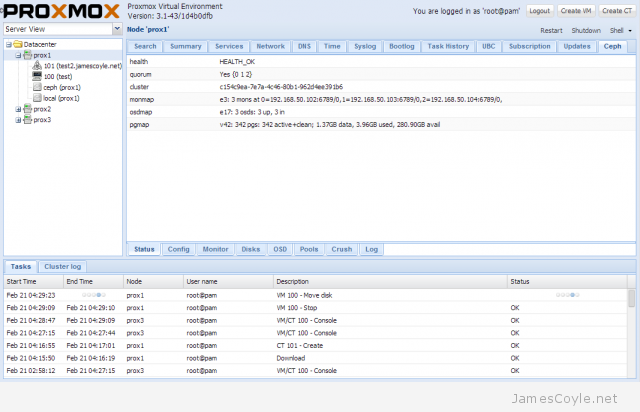
The Ceph storage pool is now set up and available to use for your KVM images. You can check the status of the Ceph storage pool by clicking on the Status tab.
See my blog post on mounting Ceph storage on Proxmox.

 If you have forgotten the password for an OpenVZ container – relax! Help is at hand.
 You can easily remove a Windows service from the Windows registry using a simple command prompt command called SC.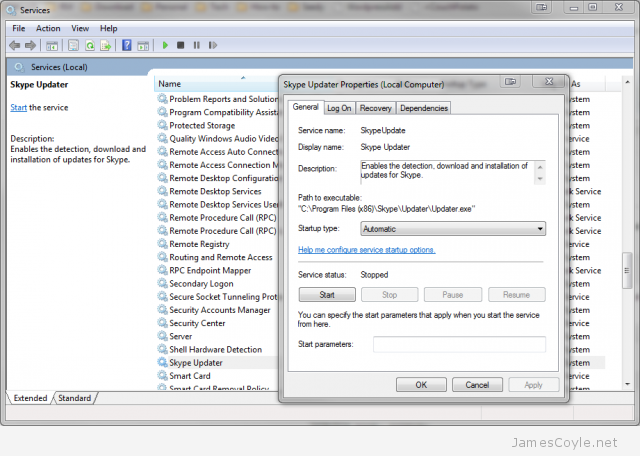
 Creating a template from an OpenVZ container is a very manual process. My biggest problem is that you have to have root access to the Proxmox hardware node in order to create a tar from the root of the CT. See